

Henry Ford Health on Stunio
Guide for School and Program Staff
Last revised November 10, 2026
Henry Ford Health uses Stunio to run its high school and early talent workforce programs: job shadows, hospital tours, and other hands-on ways for students to see healthcare careers up close. Your students will use the free Stunio app to register with Henry Ford Health, complete a set of requirements, and track their participation.
In Stunio, your class roster is called a talent pool. Henry Ford Health sets one up for each class or program, and you manage yours: you invite students, see who's ready, and help them finish what's missing. This guide calls it your pool for short.
You're the connection between your students and Henry Ford Health. This guide walks you step by step through what you'll do in Stunio to get your students ready and keep them moving.
A few key things to know before you start:
- Students must sign up with their school email. It has to be the exact address you invited them with. A personal email like Gmail won't connect them to your pool.
- Send your students to joinhfh.stunio.com for step-by-step setup.
- Requirements vary by opportunity. Your pool's Requirements tab always shows the current list.
- Some requirements work differently. For example, students email immunization records directly to Henry Ford Health, and upload an iCHAT verification in the app as a phone photo or a PDF.
- Attendance happens in the app. On job shadow days, students check in and out in Stunio.
What you'll do as a pool manager
You keep your students moving from invite to ready. Henry Ford Health creates a talent pool for your class or program (for example, ABC High School Health Science 1) and names you its pool manager. You add your students, help them complete forms, and upload documents for them when needed.
Your school may have several pools, one for each class or program, and you only see the pools you manage. A pool can also have more than one manager, for example teachers who share a class. If you share a pool with others, each of you signs in with your own account and sees the same students. If someone else at your school should be added, let your Henry Ford Health program lead know.
| You can | Henry Ford Health handles |
|---|---|
| See your students and who's ready | Creating the talent pool and its requirements |
| Invite students by email or roster | Reviewing and approving photo IDs and headshots |
| Remind students who haven't finished | Health screenings and other staff checks |
| Upload a document for a student | Posting job shadows and tours |
For privacy, you can't open files students upload, and you can't approve or reject submissions.
Step 1Claim your account and sign in
When Henry Ford Health creates your talent pool, Stunio emails you an invite to be its pool manager. The invite only works with the email address it was sent to, and it expires after 7 days. If yours expired, ask your Henry Ford Health program lead to resend it.
- Open the invite email from Stunio and click the link.
- Create your profile. Your name and title shown on correspondence to students come from what you enter here, so use the title that students and families know you by.
- Set your password and sign in. You'll see your talent pool right away. If you don't, contact your Henry Ford Health program lead.
You don't need to install anything on your computer. The portal runs directly in your web browser.
Step 2Find your talent pool
- Click the Groups tab.
- Choose Talent Pools at the top.
- Click your pool, for example ABC High School Health Science 1.
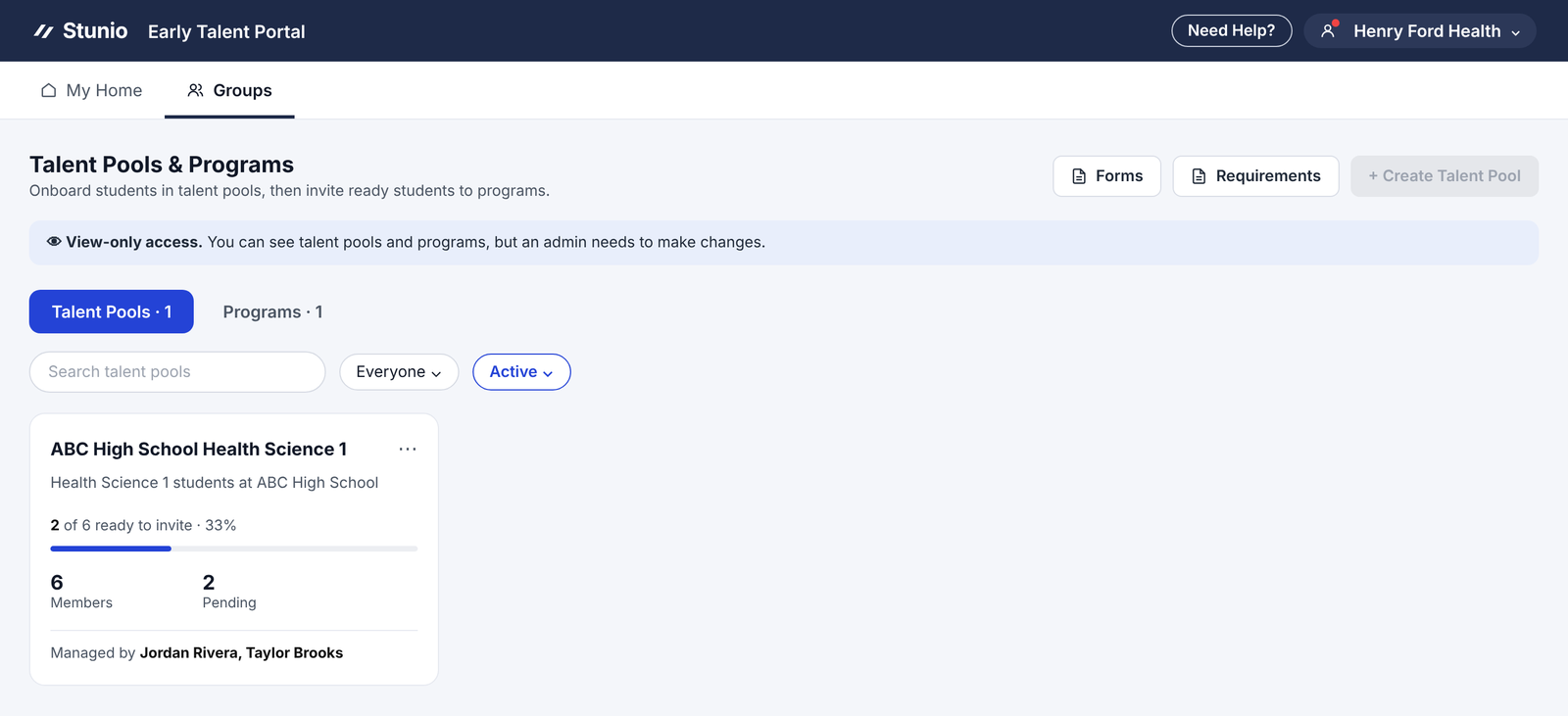
The pool opens on the People tab. The Requirements tab shows what every student must finish, with deadlines. Requirements are set by Henry Ford Health. They vary by opportunity, so check this tab for your pool's list rather than relying on the examples in this guide.
Your pool's matching program, where Henry Ford Health posts job shadows, is under Programs. Its Opportunities tab shows each job shadow, who's booked and check-in times.
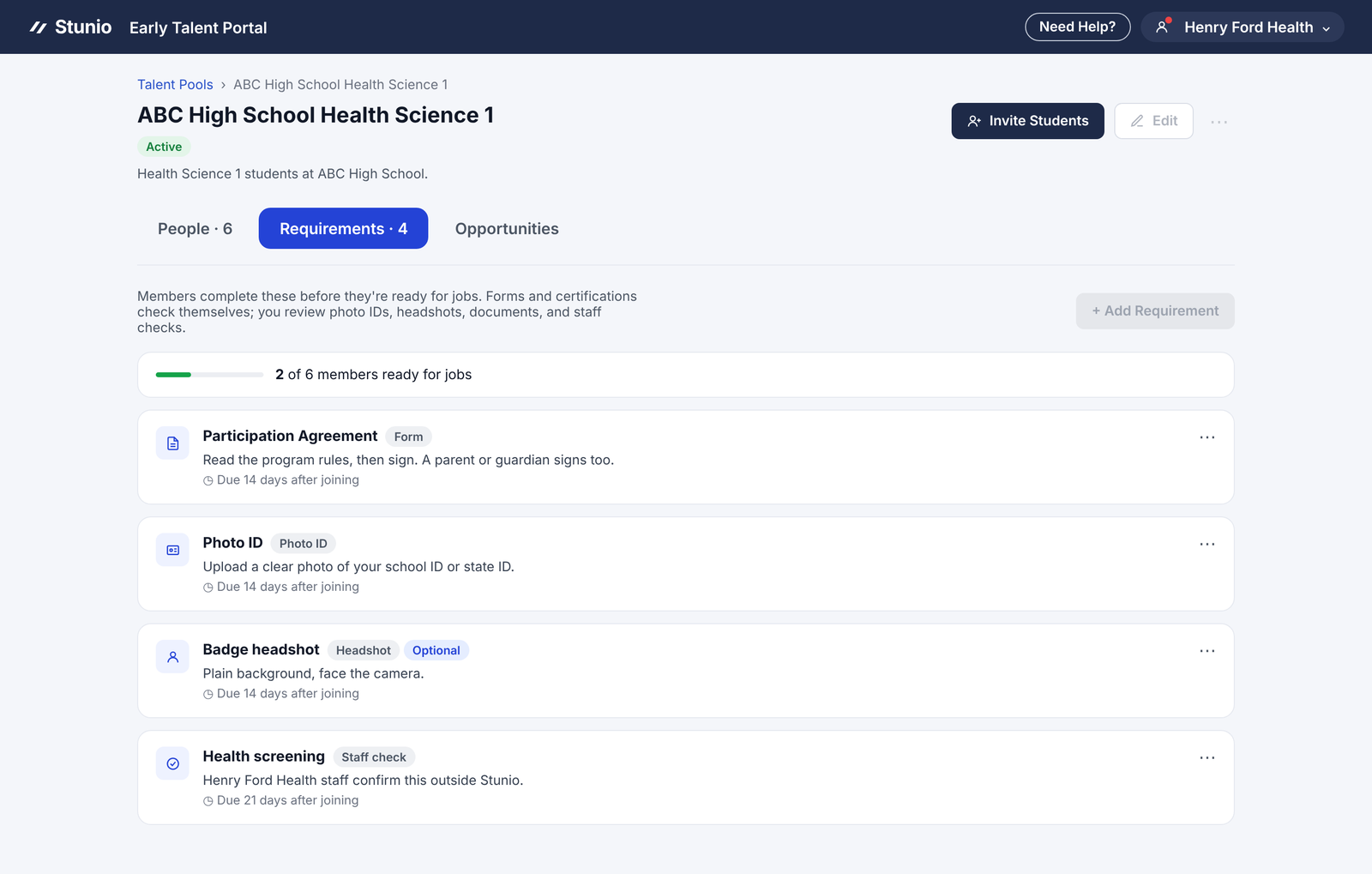
Screenshots in this guide show what you see as a pool manager. Buttons only Henry Ford Health can use, like Edit and Add Requirement, appear grayed out.
Step 3Add your students
Students join by accepting an invite in the free Stunio app. Share joinhfh.stunio.com with your students. It walks them through downloading the app, signing up with their school email and joining your pool. Invite your students using whichever of the following methods is easiest.
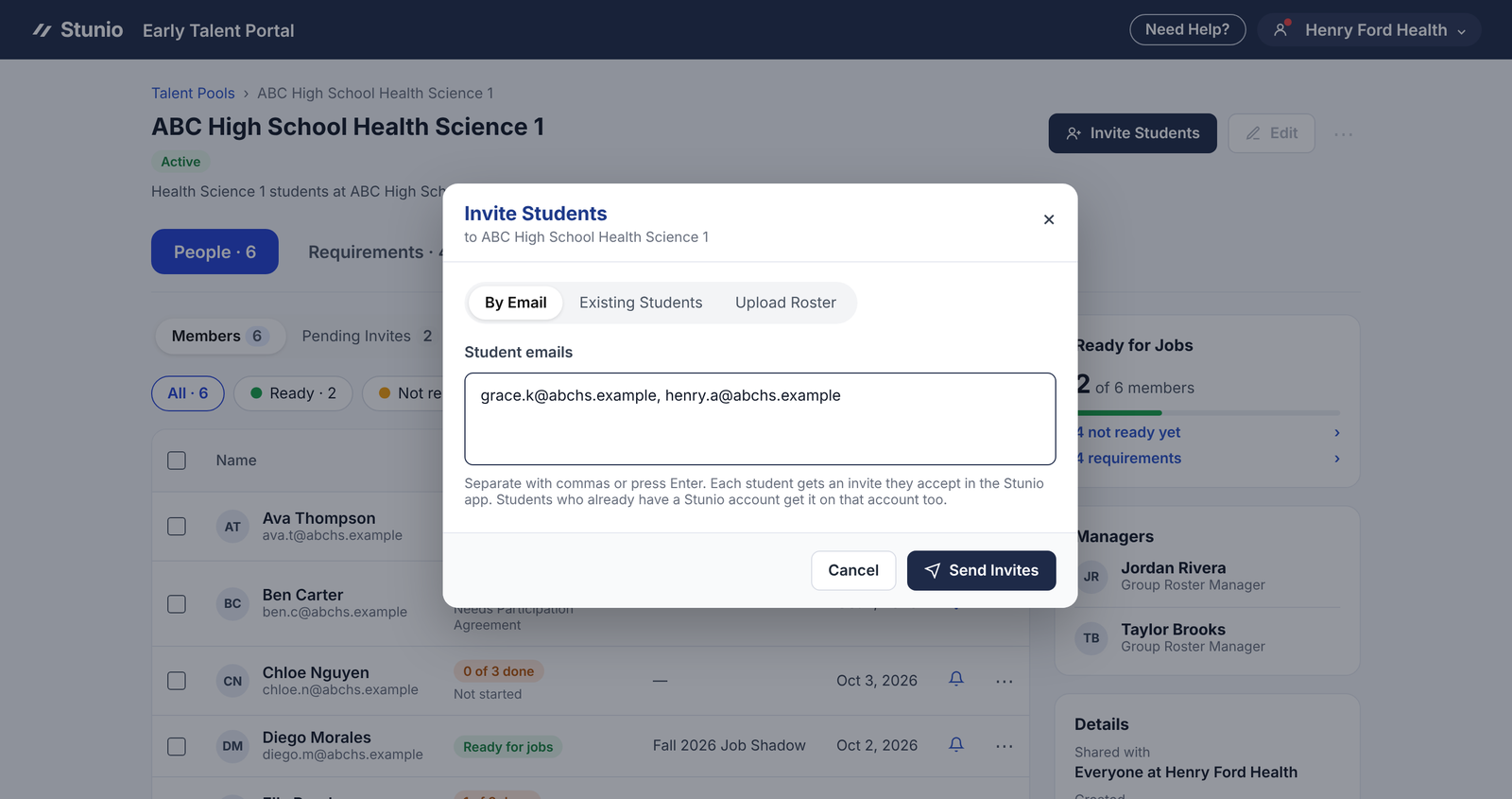
By individual email address
- In your pool, click Invite Students.
- On By Email, paste student emails, separated by commas or one per line.
- Click Send Invites.
By roster
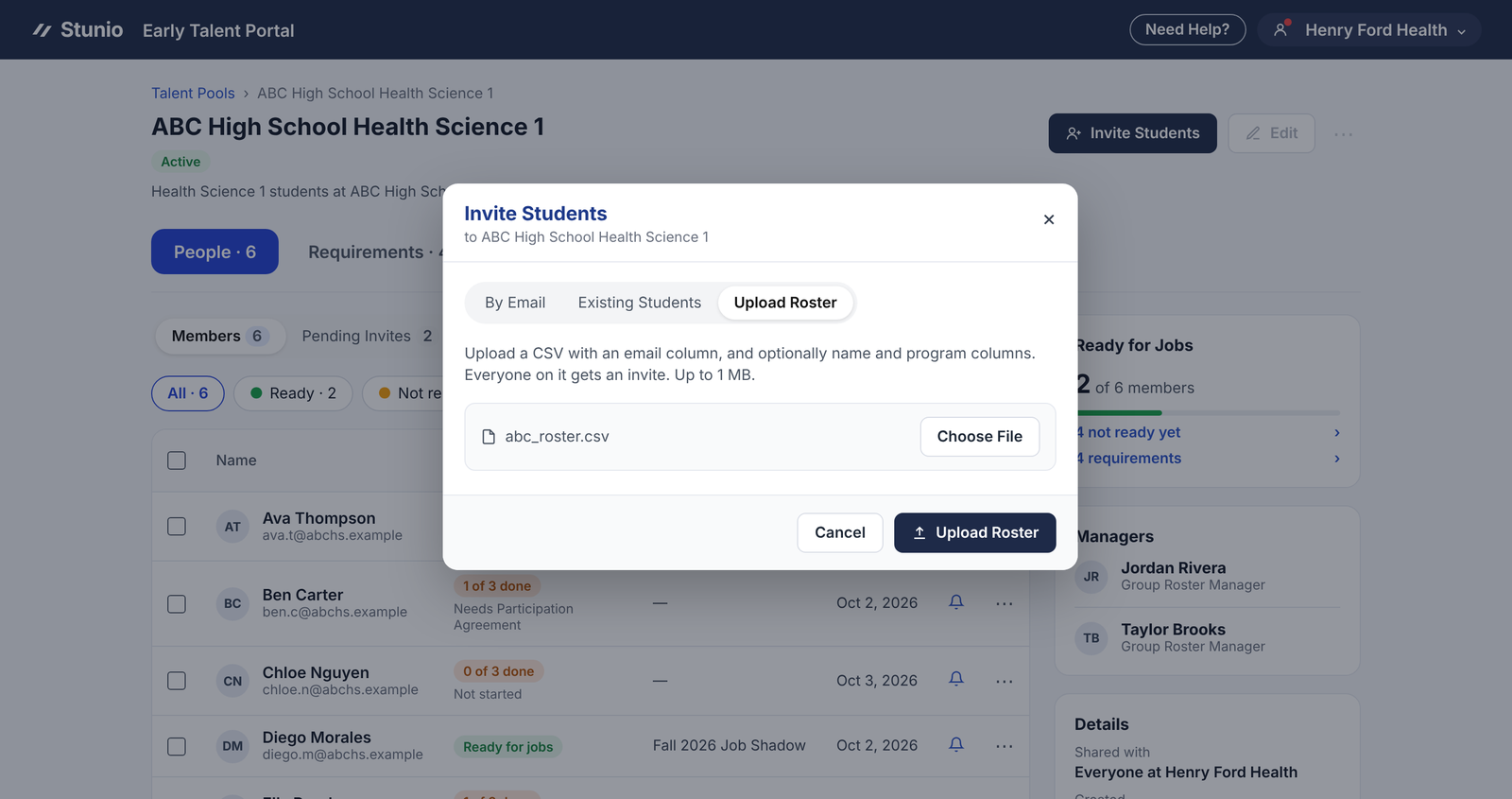
- Click Invite Students, then Upload Roster.
- Choose a CSV file with an email column. Name and program columns are optional.
- Click Upload Roster. The file can be up to 1 MB.
Check who hasn't accepted
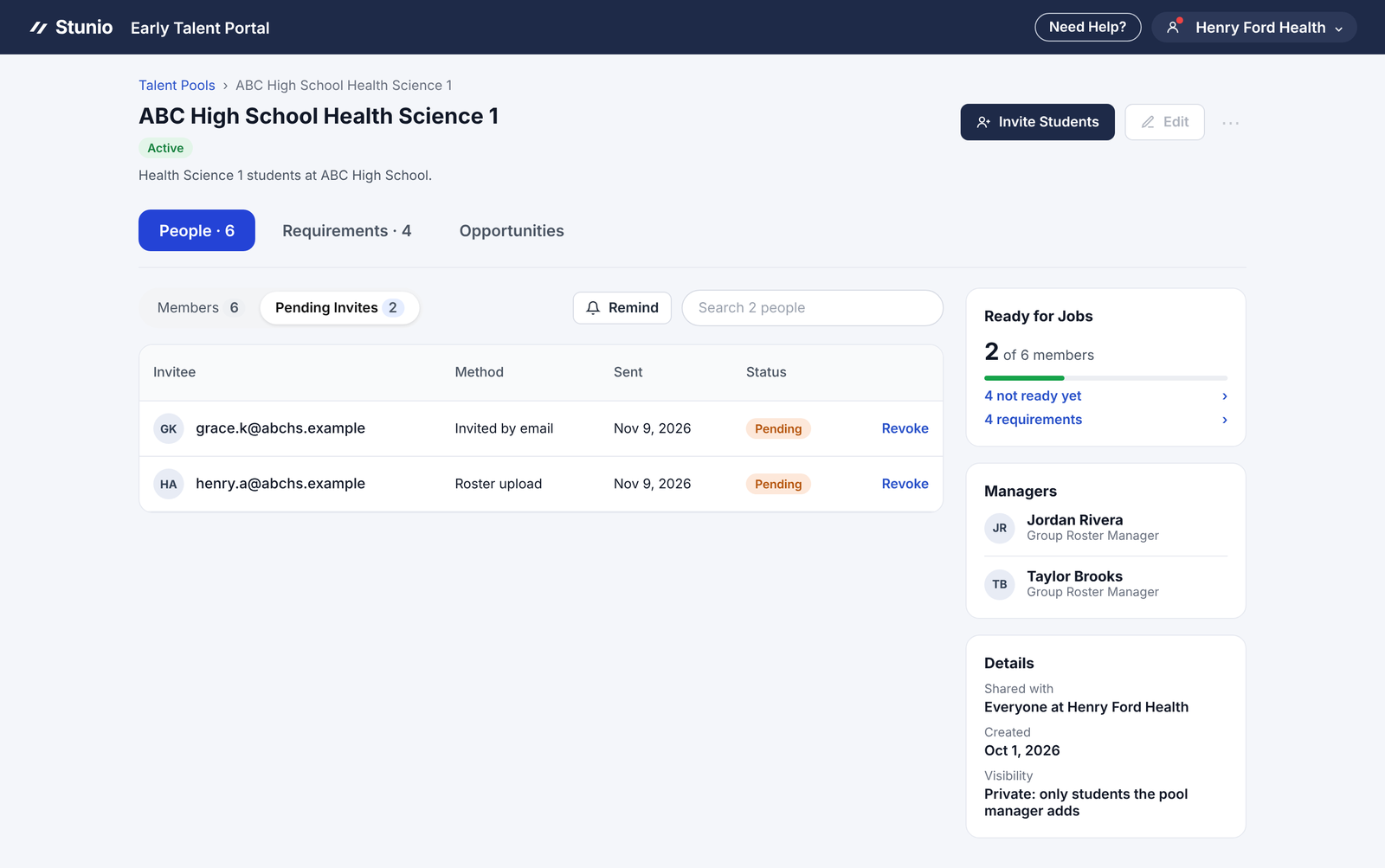
On the People tab, click Pending Invites. You'll see each student, how they were invited and when. If a student says they never got it, check the email address here. Invites expire after 7 days, so if one has expired, send it again from Invite Students.
Students can join Stunio from age 13. Once they accept, they only see opportunities Henry Ford Health sends to their pool and program. When they turn 18, they are eligible to see additional opportunities.
Step 4Track who's ready and nudge students
A student is ready once every required item is approved or complete. Once students are ready, Henry Ford Health moves them into its program. You don't need to do anything for that step. From there, students receive invitations for opportunities such as job shadows.
- The Requirements column shows Ready, or how many items are done and what's missing (for example, Photo ID was rejected).
- Click Not ready to see only students who still have work to do.
- The Ready for Jobs card on the right shows your count at a glance.
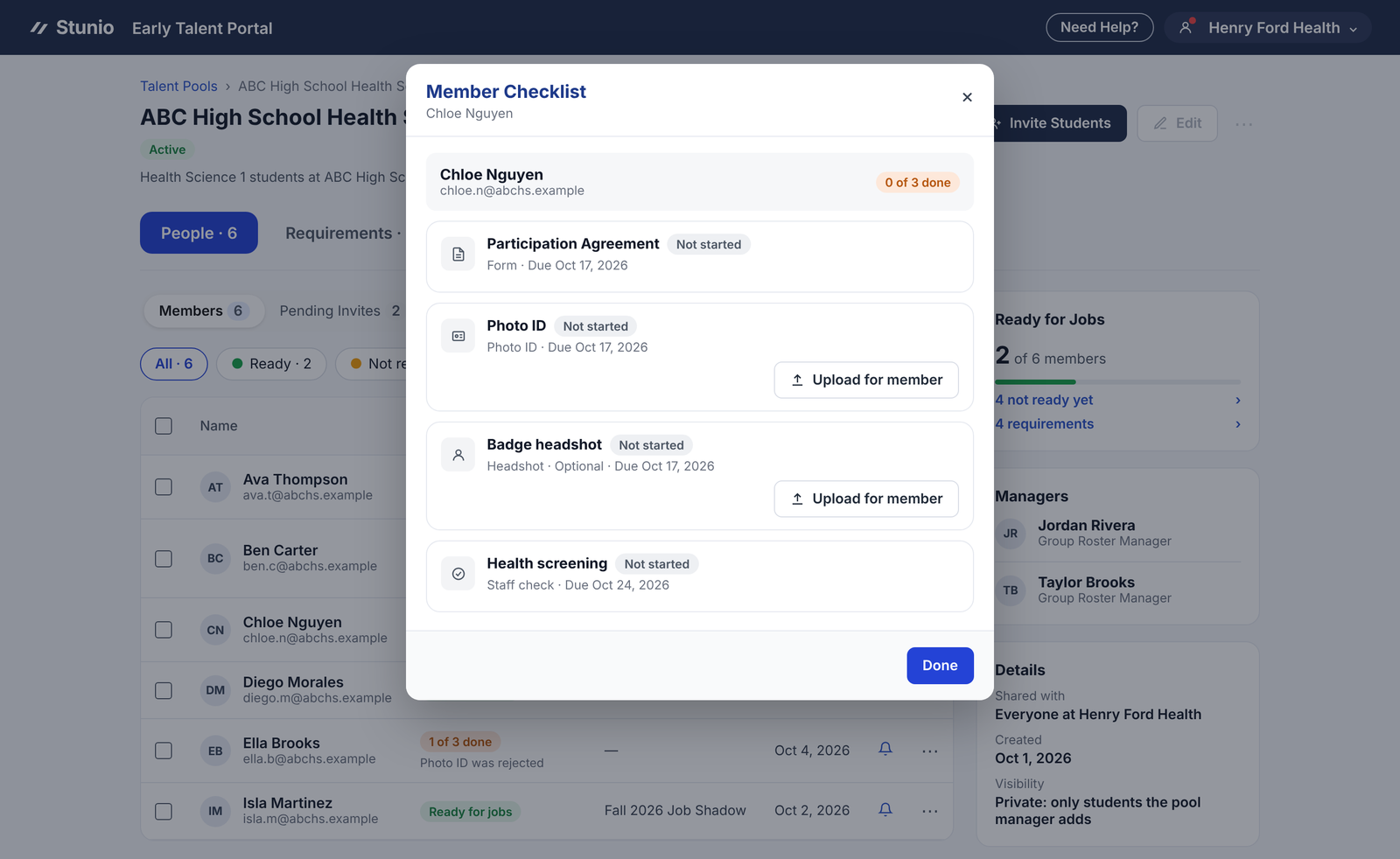
- Click a student's name to see their full checklist.
- To remind one student, click the bell next to their name. To remind a few at once, tick their checkboxes and click Remind in the bar that appears.
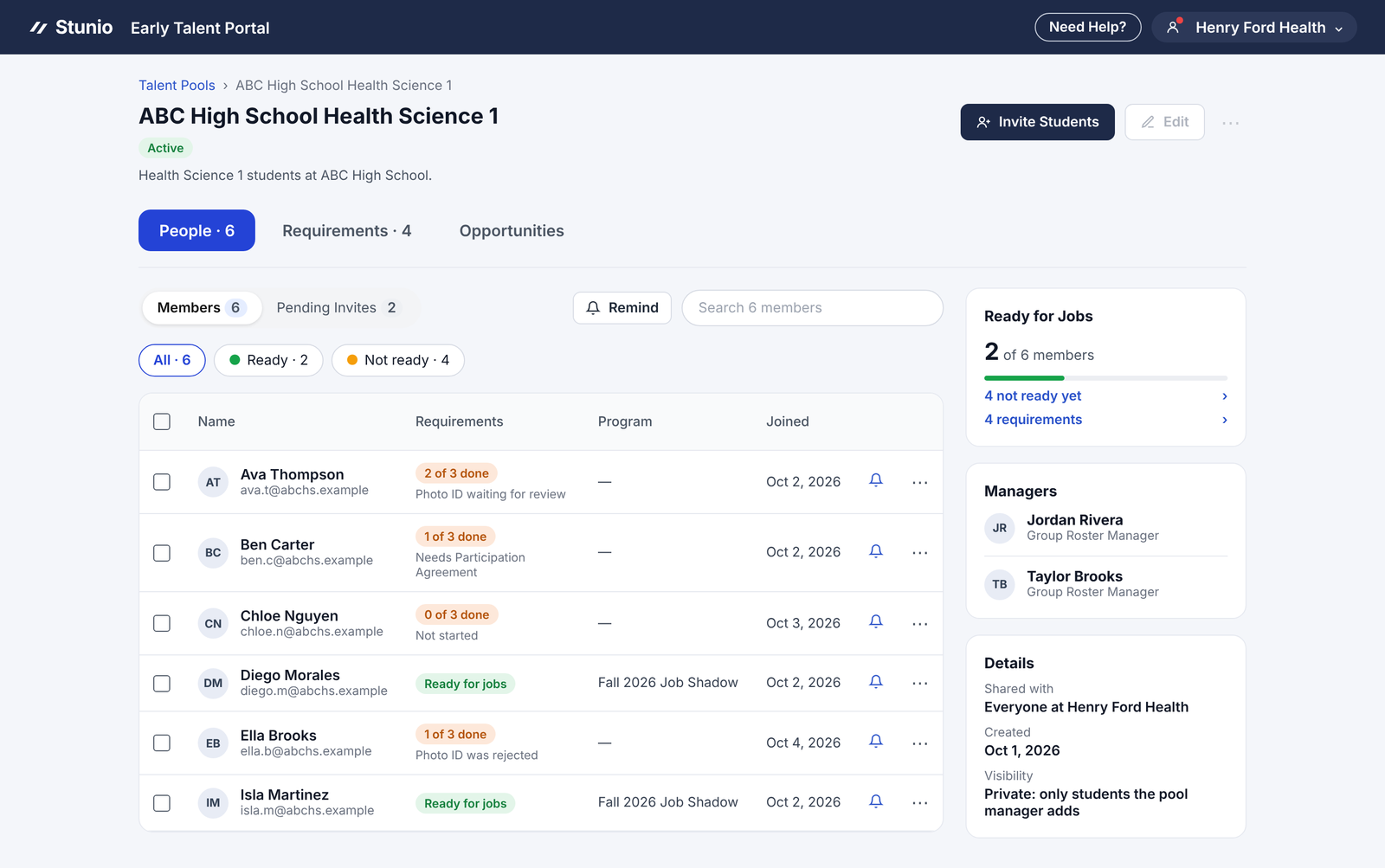
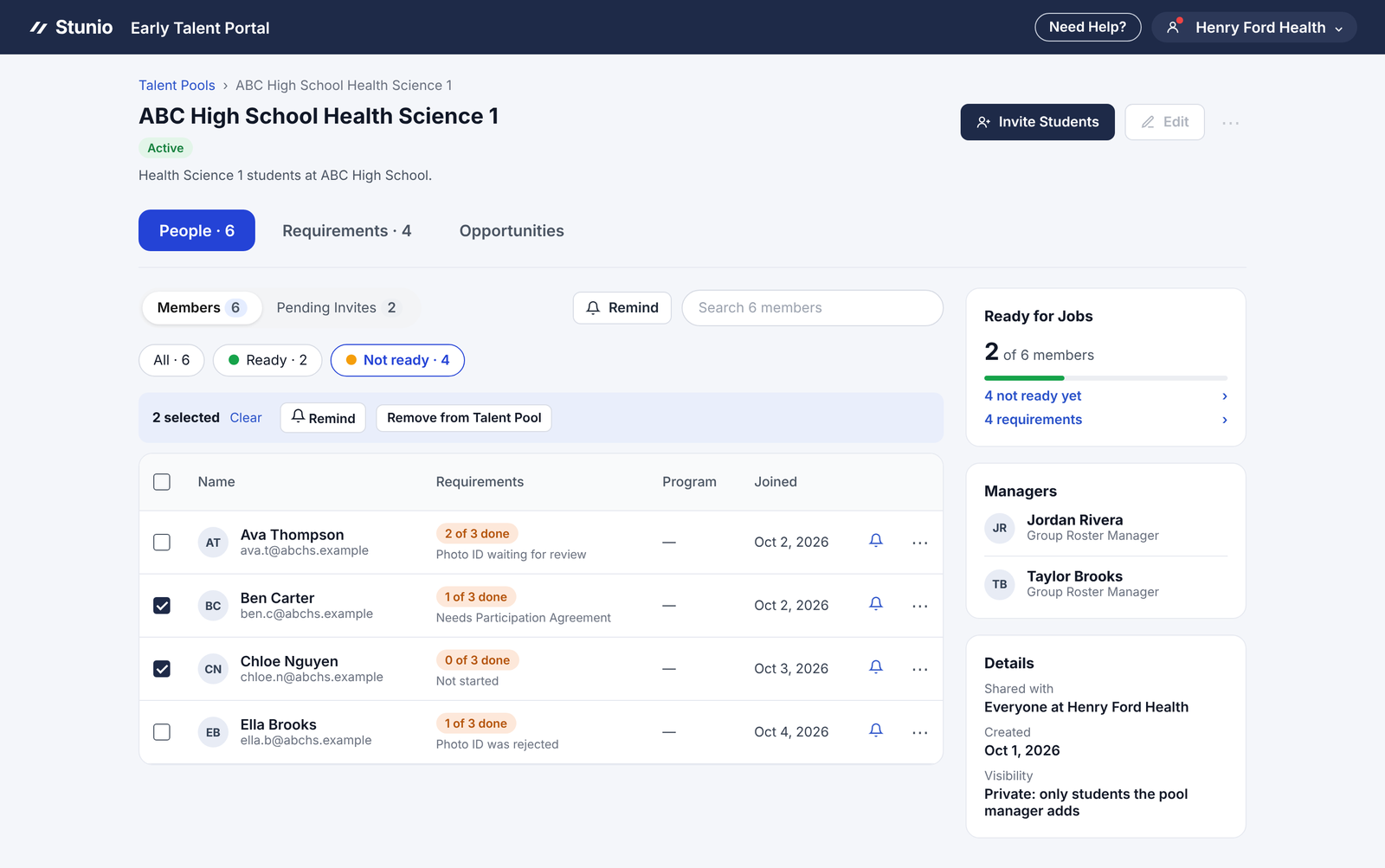
To nudge everyone who hasn't finished, click Remind above the list. For a student who's stuck, a quick conversation at school usually works best. Common snags: a blurry ID photo, or a form waiting on a parent's signature.
Stunio also reminds students automatically: 7 days before a requirement is due, 1 day before, and the day after if it still isn't done.
Step 5Upload documents for a student
Some families may need to sign on paper, and some students may need help getting a document into the app. In either case, you can upload it for them.
How to upload
Take a clear photo or scan of the signed form or document. Click the student's name to open their checklist, then click Upload for member next to the item and choose the file. It shows "Uploaded by" with your name and goes to Henry Ford Health as Waiting for review. Once you upload a file, you won't be able to open it again. That protects student privacy.
Immunization records
Students email their immunization records directly to Henry Ford Health. The address is in the app. If it's easier, you can email records for several students at once. Henry Ford Health approves them, and the student's checklist shows them as approved.
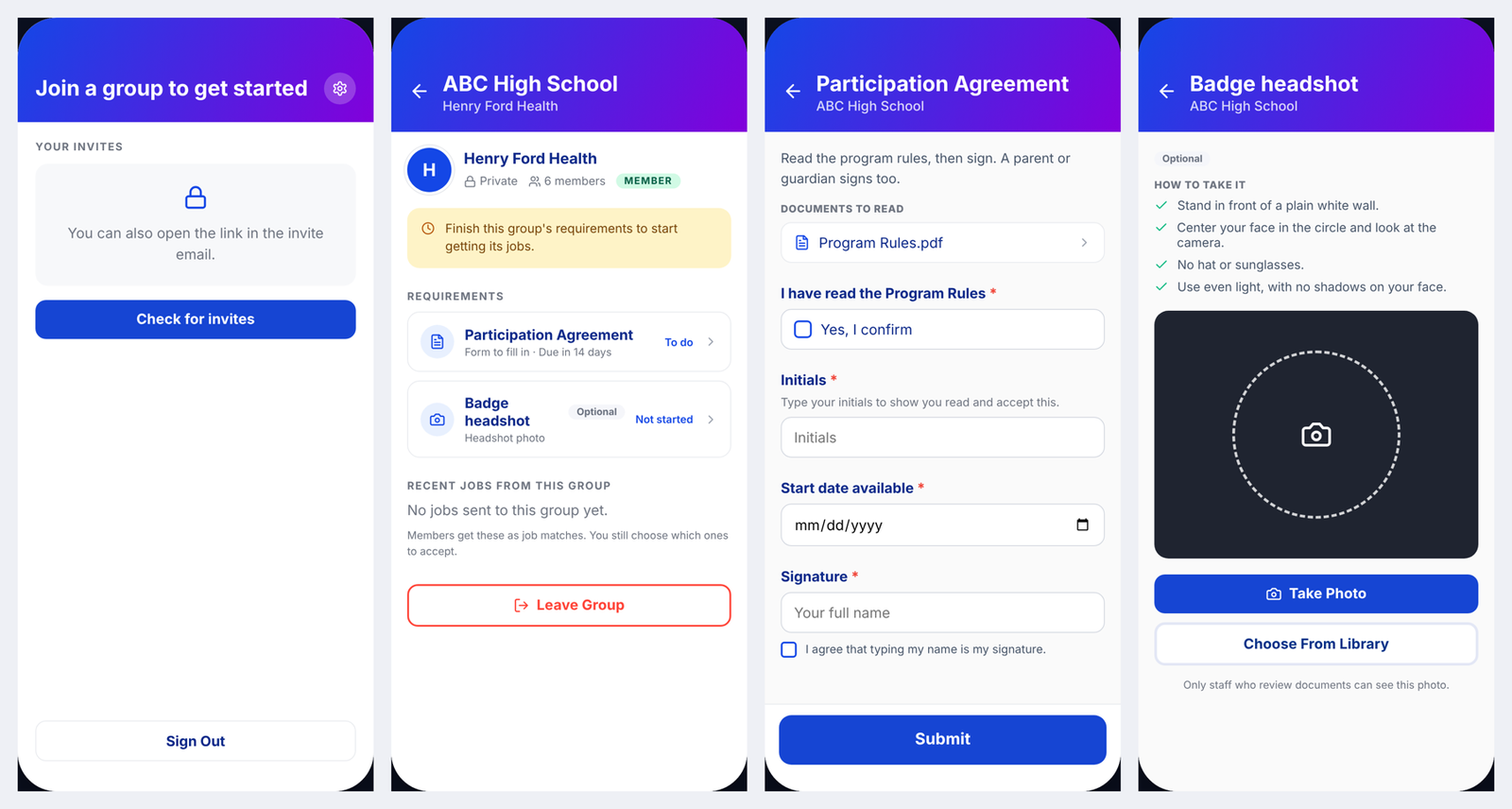
Step 6What students see
Knowing the student side helps you answer questions. Students can find these steps in more detail at joinhfh.stunio.com.
- The student downloads the Stunio app, signs up with their phone number and a texted code, and enters the school email you invited. Stunio then verifies that email, usually by a link sent to it. Until they accept an invite, the app shows Join a group to get started.
- They open the invite and join your pool. A yellow banner says to finish the requirements.
- They tap each requirement to complete it: read the attached documents, fill in the form, sign, and have a parent or guardian sign where needed.
- For photos, the app walks them through taking a clear ID photo or badge headshot.
- Once everything is approved, they're ready. Henry Ford Health sends job shadow opportunities to their phone, and they accept or decline. Accepted job shadows and their schedule show on the Work tab, the app's home screen.
- Henry Ford Health may send a job shadow before a student has finished everything. The student can see it but has to finish the requirements before they can accept.
Coming soon
Planned but not live yet. We'll update this guide as each one ships.
- A daily digest email sent to you, summarizing your pool's progress.
- A reminder sent to students 24 hours before a job shadow.
- A short feedback survey for students after each job shadow. Students can already rate a job shadow in the app afterward.
Getting help
For help with the portal, your account or your students' invites, email partnersupport@stunio.com. You can also click Need Help? in the top bar of the portal. For questions about requirements, approvals or job shadow dates, contact your Henry Ford Health program lead.